How to View DMD2 Rides on Mac - Import GPX & Match Photos
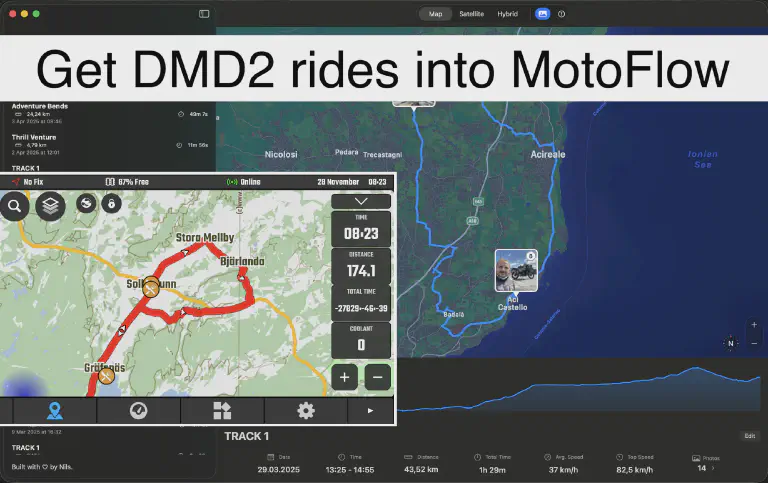 DMD2 ride with photos automatically matched in MotoFlow
You’ve got Drive Mode Dashboard 2 (DMD2) running on your Android phone or dedicated DMD2 device, mounted on the handlebars. It tracks your rides, records GPX files, shows you the way. It’s good at what it does.
But what happens when you get home?
Your GPX files sit on your Android device. Your photos are on your iPhone. Nothing connects them. That mountain pass you discovered last month? Good luck finding the photos that go with that ride.
There’s a better workflow: MotoFlow. Import your DMD2 rides and match them with photos automatically - or skip the export hassle entirely and record directly with MotoFlow on iPhone or Apple Watch.
The DMD2 Rider’s Problem
DMD2 excels at on-bike use. The Android-based dashboard gives you navigation, tracking, and route recording while you ride. For that purpose, it works well. Many adventure riders run a dedicated Android device just for DMD2, keeping their iPhone in a pocket for photos and communication.
But organizing rides happens at home, usually on a Mac. And that’s where things fall apart.
GPX files accumulate in folders. Maybe you sync them to Google Drive, maybe they stay on the phone until you remember to transfer them. Photos live separately in Apple Photos on your iPhone - completely disconnected from the routes you rode.
Want to relive that epic Alps trip from last summer? You’ll need to dig through folder structures, find the right GPX file, open it in some generic viewer, then separately scroll through your Camera Roll trying to match dates. It’s tedious enough that you probably don’t bother.
The alternative - apps like REVER or Calimoto - means uploading your data to their servers, paying subscriptions, and being locked into their ecosystem. For riders who value privacy and ownership, that’s not ideal.
Your rides deserve better than a folder. And your data deserves to stay yours. That’s why I built MotoFlow - an app for Mac and iPhone that imports your DMD2 rides, automatically matches your photos, and gives you a visual archive you’ll actually use. Import and organize on Mac, then relive your rides anywhere with iCloud sync.
Exporting GPX from DMD2
First, get your GPX files off the Android device. Here are two approaches that work well.
Option 1: Google Drive sync
This is what I use: upload recordings from DMD2 to Google Drive, then download to my Mac. DMD2 doesn’t sync to cloud automatically, so this is a manual step. You can either share individual rides from the Recording screen to GDrive, or create a zipped backup and upload that. I prefer the latter because I get full backups this way.
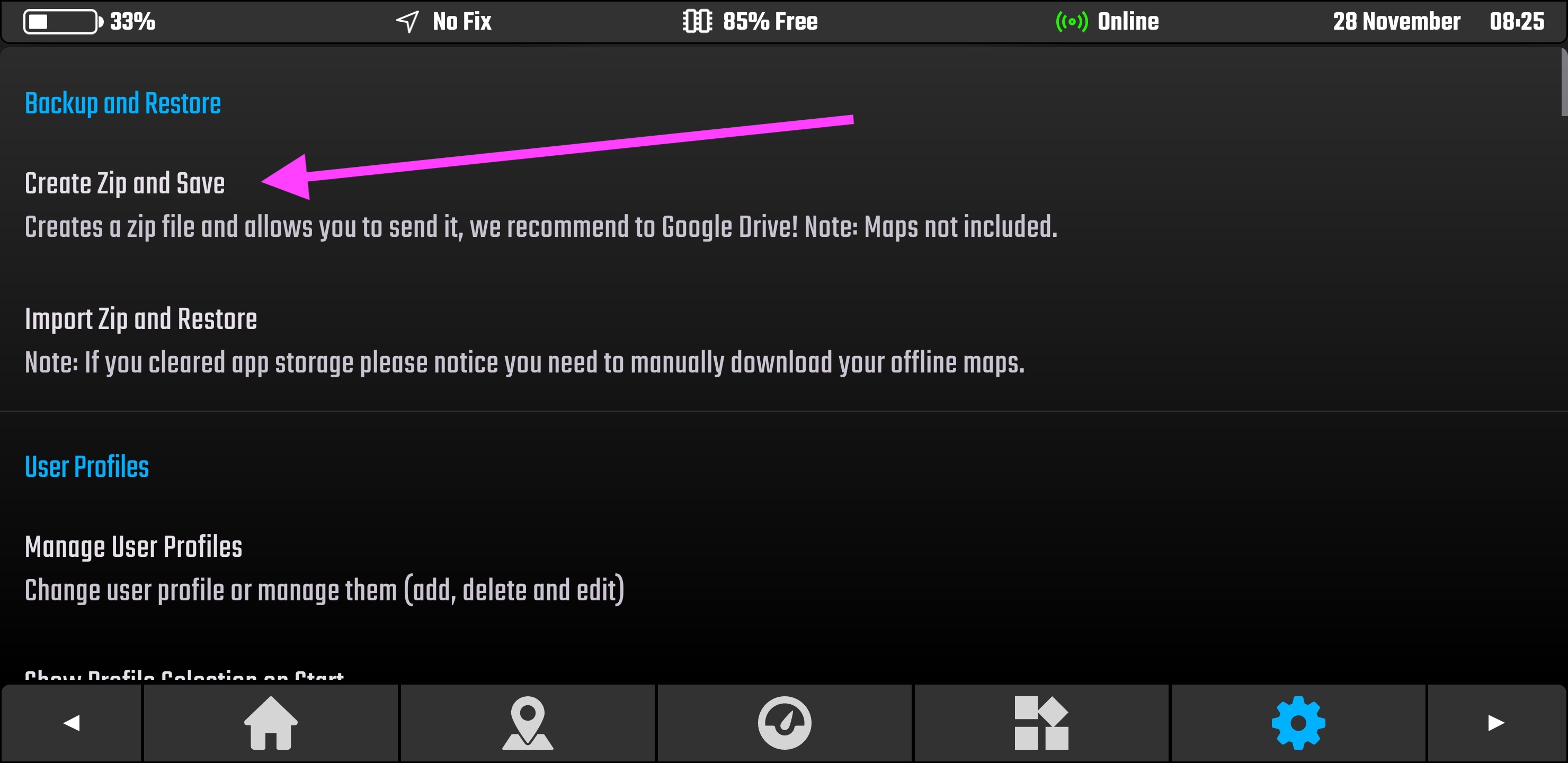
Create a full ZIP backup from DMD2 settings which includes all recordings
Once uploaded, download from drive.google.com to your Mac, or use the Google Drive desktop app to access them directly. Double-click the zip in Finder to extract. Your GPX files are in UserFiles/Recordings, ready to import into MotoFlow.
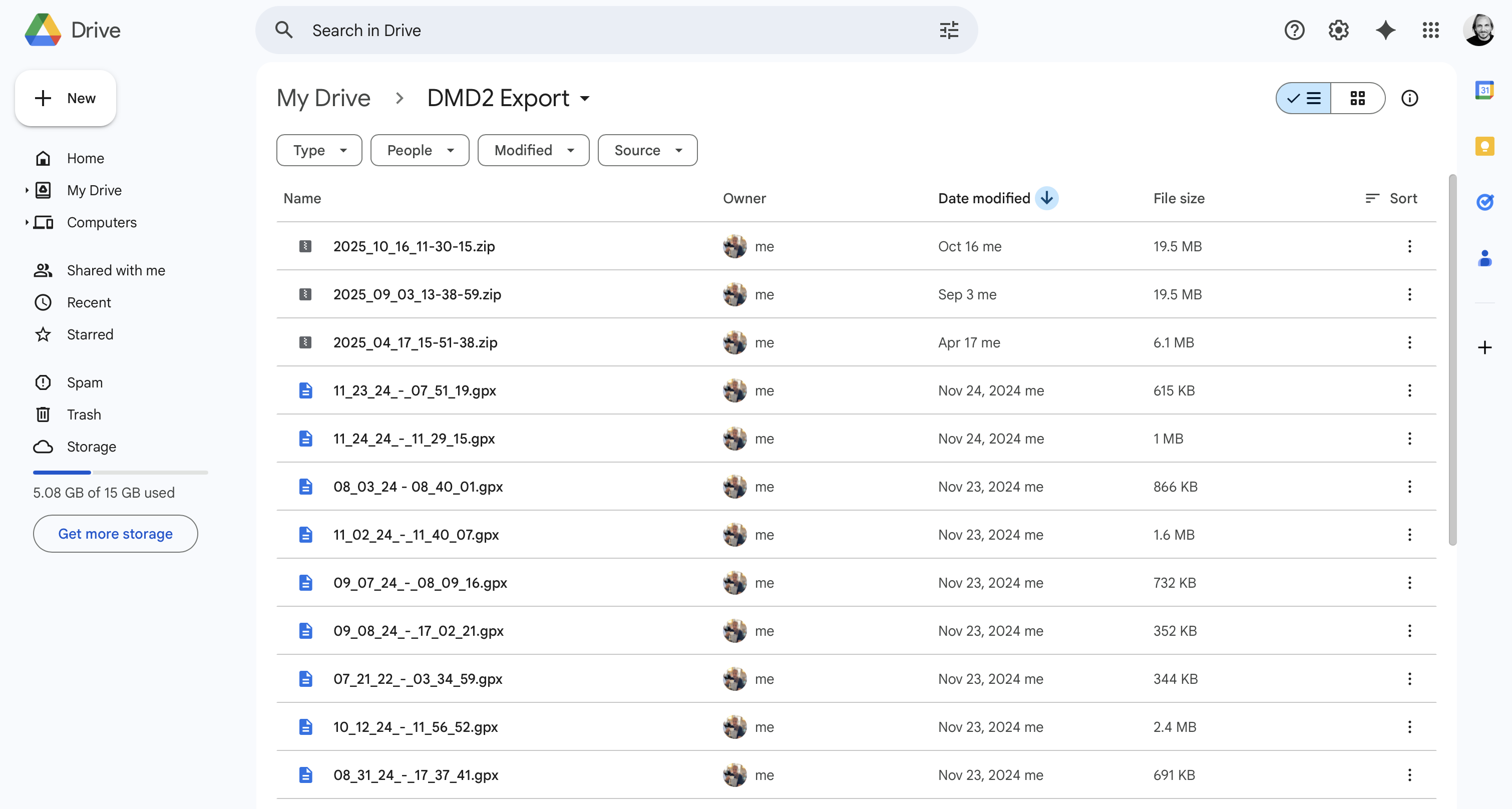
Various DMD2 .gpx exports on my Google Drive, full zip backups and individual files
A different cloud provider works too, of course.
Option 2: USB cable transfer
Prefer to skip the cloud? Direct USB transfer works too. A good free option is OpenMTP (a successor to Android File Transfer).
Connect your Android to your Mac via USB, open OpenMTP, and navigate to the DMD2 recordings folder:
Android/data/com.thorkracing.dmd2launcher/files/User/GPX/Recordings/
Copy the .gpx files directly. Old school, but reliable.
Importing to MotoFlow
Once your GPX files are accessible on your Mac, import them to MotoFlow.
You can import individual files for specific rides, or bulk import an entire folder if you’ve got a season’s worth of rides to bring in. Use File > Import from the menu to select your GPX files. MotoFlow handles GPX files from any source - DMD2, Garmin, Scenic, Calimoto, or phone GPS apps.
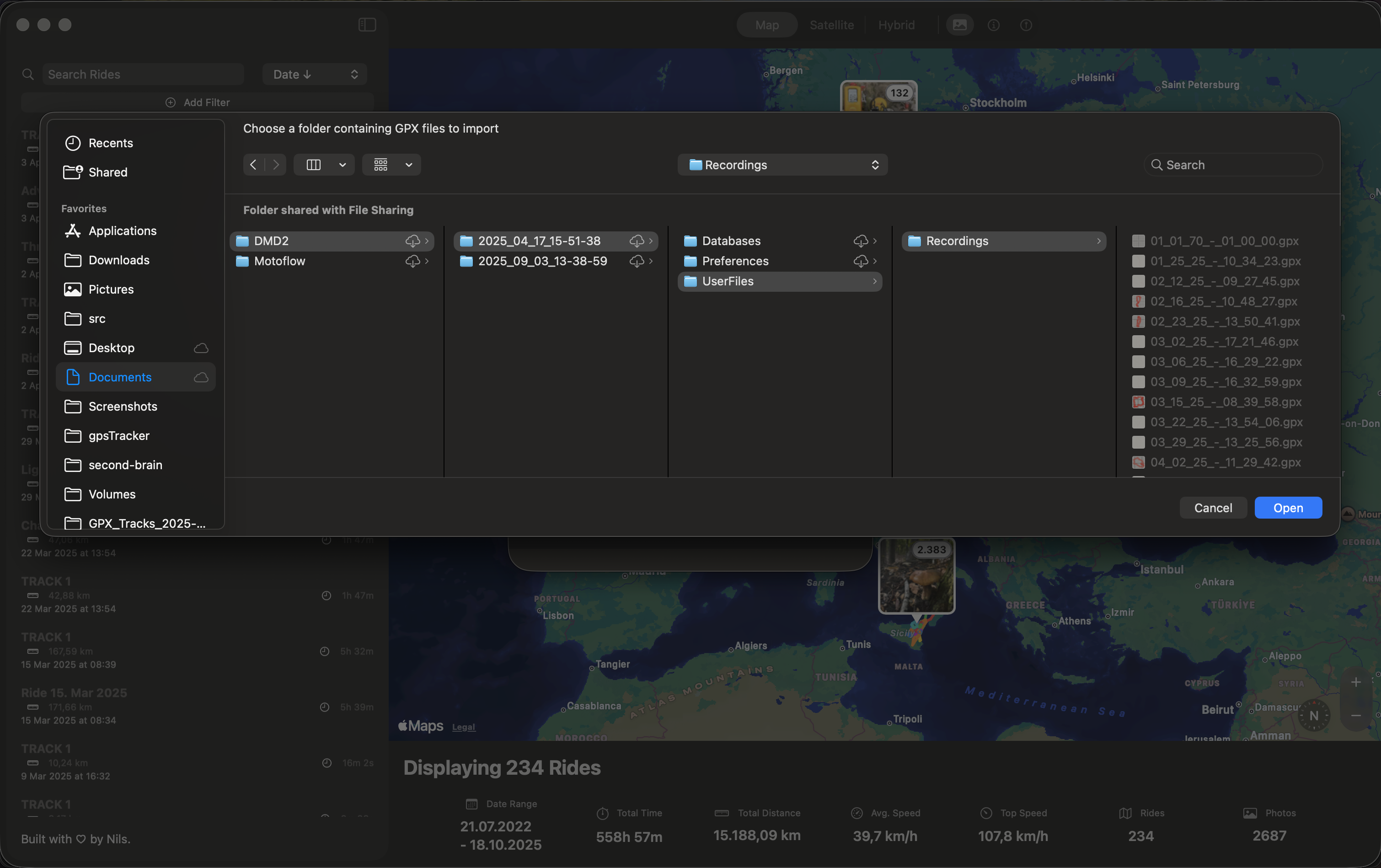
Importing a full GPX backup at once from UserFiles/Recordings in the DMD2 export
Here’s where it gets interesting: automatic photo matching.
MotoFlow reads your GPX timestamps and cross-references them with your Apple Photos library. Photos taken during a ride automatically appear along that route - no manual tagging required.
How it works:
- Your GPX file contains timestamps for each track point (typically recorded every few seconds)
- Your photos have timestamps in their EXIF data
- MotoFlow matches photos to track points based on when they were taken
- Location data in photos provides additional accuracy for precise placement
- The matching happens locally on your Mac - photos never leave your device
The result: open any ride, and your photos are already there, pinned to the exact locations where you took them. That coffee stop photo appears right where you pulled over. The summit shot sits at the highest point of your route.
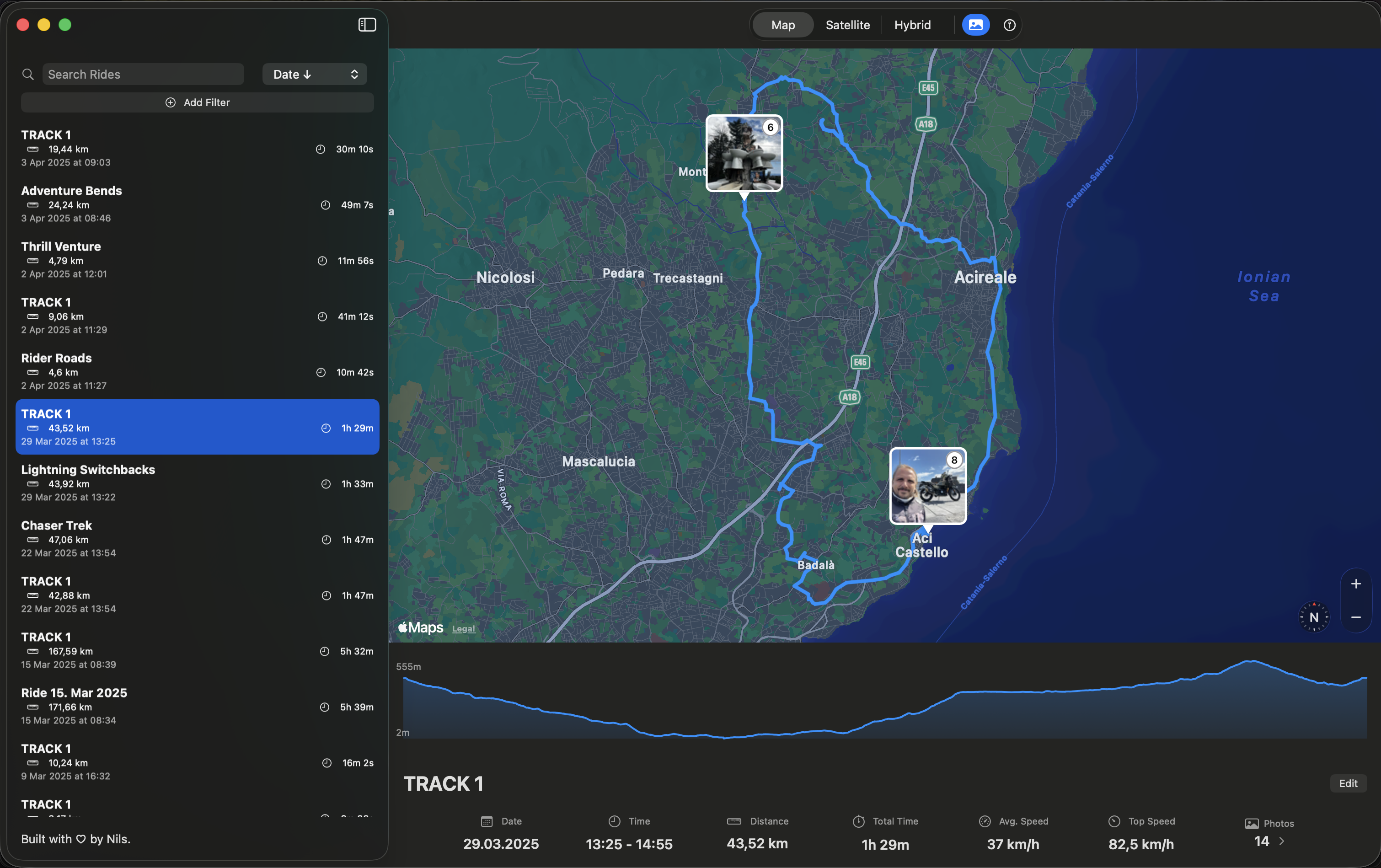
Your photos appear exactly where you took them along the route
This works with photos from any camera - iPhone, GoPro, Insta360, or a dedicated camera. Just import them to Apple Photos first (which you probably do anyway), and MotoFlow finds them automatically. As long as the timestamps are correct, the photos match.
Organizing Your Ride Archive
With your DMD2 rides imported, you’ve got a proper archive you’ll actually use.
Browse by date range to find specific trips. Looking for “summer 2024”? Filter by date and scroll through your rides visually. That mountain route you’re trying to remember? You’ll recognize it by the route shape and the photos, not by deciphering filenames like 01_25_25_-_10_34_23.gpx.
Each ride displays:
- Route visualization on the map with the actual path you rode
- Elevation profile showing climbs and descents
- Statistics including distance, duration, and elevation gain
- All matched photos positioned along the timeline
iCloud sync means your archive is available on your iPhone too. Show your riding buddies that route you discovered, right from your phone at the next meetup. No need to dig through folders or remember which cloud service has your files.
For riders coming from other apps: you can import your entire history. Years of Calimoto rides, Scenic tracks, Garmin exports - bring them all into one place. Your complete riding history, finally unified.
Why This Beats the Alternatives
There are a few ways to handle your DMD2 ride data. Folders get messy, subscription apps hold your data hostage. MotoFlow is built around one principle: your rides should be easy to revisit, and your data should stay yours.
The folder method: GPX files sit in nested directories, rarely opened. Photos remain in your Camera Roll, disconnected from context. After a year, you forget which file is which. After two years, you forget the files exist.
The subscription app method: Your data lives on someone else’s servers. Cancel the subscription, lose access. Company shuts down, data disappears. Privacy policies change, your rides become training data.
The MotoFlow method: Visual archive you actually browse. Route and photos together. Context preserved. Pay once, own it forever. Your data stays in your iCloud - no external servers, no subscription. When winter comes, spend an evening rediscovering last season’s best roads.
Common Questions
Can I import GPX files from other apps besides DMD2?
Yes. MotoFlow imports GPX files from any source - Garmin, Calimoto, Scenic, or any GPS device. The workflow is the same regardless of where your rides were recorded.
Does photo matching work with GoPro or action cam photos?
Yes. Any camera with accurate timestamps works - GoPro, Insta360, or dedicated helmet cams. Import the footage to Apple Photos first, and MotoFlow matches them automatically.
Do I need to keep using DMD2 after switching to MotoFlow?
That's up to you. Keep DMD2 for navigation and recording if you like it, then import to MotoFlow for organization. Or record directly with MotoFlow on iPhone or Apple Watch instead.
Where are DMD2 GPX files stored on Android?
DMD2 stores recordings in Android/data/com.thorkracing.dmd2launcher/files/User/GPX/Recordings/. You can access them via USB with OpenMTP, or create a ZIP backup from DMD2 settings and sync via cloud storage.
What if my photos don't match the ride timestamps correctly?
For iPhone photos with GPS, location data provides a fallback. For other cameras, ensure the clock is set correctly before rides. You can also adjust photo timestamps in Apple Photos if needed.
DMD2 for Riding, MotoFlow for Remembering
They’re complementary tools. DMD2 handles navigation and recording while you’re on the bike - it’s purpose-built for that. MotoFlow handles organization and reliving when you’re home.
Or skip the DMD2 export workflow entirely: MotoFlow’s iPhone and Apple Watch apps can record rides directly. If you don’t need DMD2’s navigation features, just record with MotoFlow and your rides sync to your Mac automatically. No export, no import, no manual steps.
No subscription required. Pay once, own it. Your data stays in your iCloud, synced through Apple’s infrastructure. No account to create, no external servers involved.
I built MotoFlow because I had the same problem - years of GPX files and photos with no good way to connect them. DMD2 on the bike, Mac at home, and nothing in between.
There’s a free tier to try the workflow. See how your DMD2 rides look when they’re actually organized. Import a few files, watch the photos match up, and decide if it works for you.
Get MotoFlow Today!
Track the ride. Relive the journey.