How to Organize Motorcycle Ride Photos with Your Routes
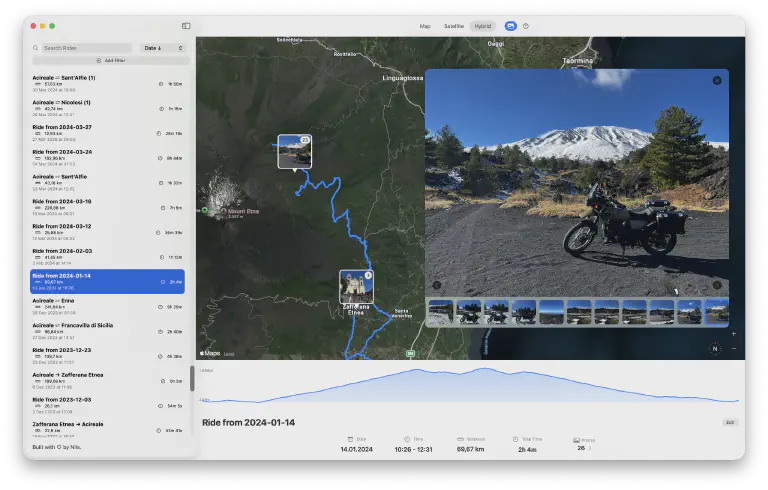 Motorcycle ride photos automatically matched to your routes in MotoFlow
You take photos during rides. We all do - the scenic overlook, the mountain pass summit, the quirky roadside café. These moments matter.
But later, back home, you’re scrolling through thousands of photos in Apple Photos: “Which ride was this from?” That epic viewpoint shot from somewhere in the Alps - was that June or August? That winding road photo - Black Forest or Vosges?
What if your photos automatically showed on your routes, exactly where you took them?
The Photo Problem Every Rider Has
Your Apple Photos library has thousands of images. Mixed in there are ride photos - but they’re scattered across months and years, indistinguishable from dinner snapshots and cat pictures.
Meanwhile, your GPX files sit in folders somewhere. Maybe on Google Drive, maybe on your desktop, probably forgotten. They’re disconnected from the photos that give them meaning.
Finding photos from “that trip to the Alps” means scrolling through your Camera Roll, trying to match dates, hoping you remember roughly when you rode. It’s tedious. You probably don’t bother.
Sharing a ride with friends? You’d need to manually collect the right photos, export the GPX separately, and somehow present them together. So you just show a few photos and say “trust me, the route was amazing.”
Some riders use apps like REVER or RISER to solve this. But those require uploading everything to their servers - your routes, your photos, your data. Cancel the subscription and your access disappears. The company pivots or shuts down, and your memories go with it.
Your photos should stay yours. And they should connect to your rides without leaving your device.
How Photo Matching Works
The solution is simpler than it sounds. Your photos and your GPX files already contain the information needed to connect them - timestamps.
Understanding Photo Metadata
Every photo your iPhone takes includes metadata: exactly when it was shot, down to the second. Many cameras also record GPS coordinates directly in the photo.
Your GPX tracks contain timestamps too. Each track point records when you were at that exact location, typically every few seconds throughout your ride.
How Timestamp Matching Works
Matching is straightforward: if a photo was taken at 14:32:15, and your GPX track shows you were at coordinates 47.123, 11.456 at 14:32:15, that photo belongs there on your route.
For photos with embedded GPS (most iPhone photos), location provides additional accuracy. Even if timestamps drift slightly between devices, the GPS coordinates confirm placement.
Compatible Cameras
This works with any camera that records accurate time:
- iPhone - timestamps and GPS, perfect matching
- Action cams (GoPro, Insta360) - timestamps only, but sufficient
- DSLR/mirrorless - as long as the clock is set correctly
- Helmet cams, Sena cameras - same principle applies
The key requirement: your camera’s clock needs to match reality. iPhones handle this automatically. For other cameras, set the time correctly before rides, and your photos will match.
Setting Up Automatic Photo Matching in MotoFlow
MotoFlow handles this automatically. Record a ride with MotoFlow or import a GPX file, and any photos from your Apple Photos library taken during that ride appear along the route.
Step 1: Grant Apple Photos Access
The first time MotoFlow tries to match photos, macOS will ask for permission to access your photo library. Grant it. MotoFlow reads your photos locally - nothing gets uploaded anywhere.
Step 2: Import Your GPX Files
Use Ride Management > Import GPX Files from the menu. Works with files from any source: DMD2, Calimoto, Scenic, Garmin, phone GPS apps, whatever you use to record rides.
Step 3: View Matched Photos
Once imported, open any ride. Photos taken during that time window appear as pins along your route. Click a pin, see the photo. No tagging, no organizing, no manual work.
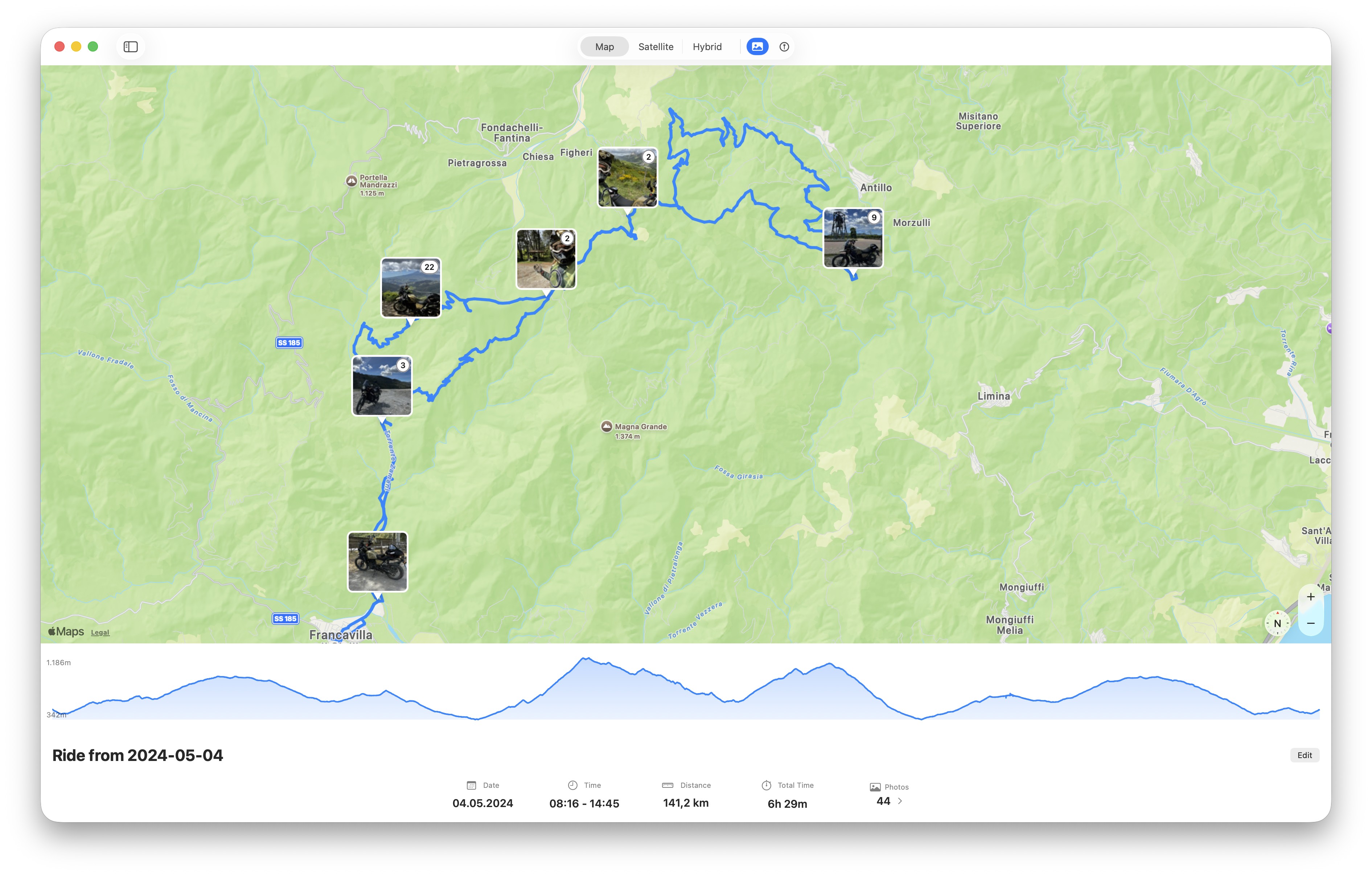
Photos appear as pins along your route, positioned where you took them
This works with your existing photo library. You don’t need to re-import photos or organize them differently. MotoFlow finds them where they already live and displays them in context.
Does This Work with Old Photos?
Yes. Import a GPX from three years ago, and if the photos are still in your Apple Photos library, they’ll appear on the route. Your entire ride history becomes organized retroactively.
Try MotoFlow free on the Mac App Store
Reliving Rides with Photos
Once your rides have photos attached, browsing changes completely.
Browse by Route, Not by Date
Open a ride and scroll through the timeline. Each stop, each viewpoint, each memorable moment - marked by the photos you took there. You remember why that spot mattered, not just where it was.
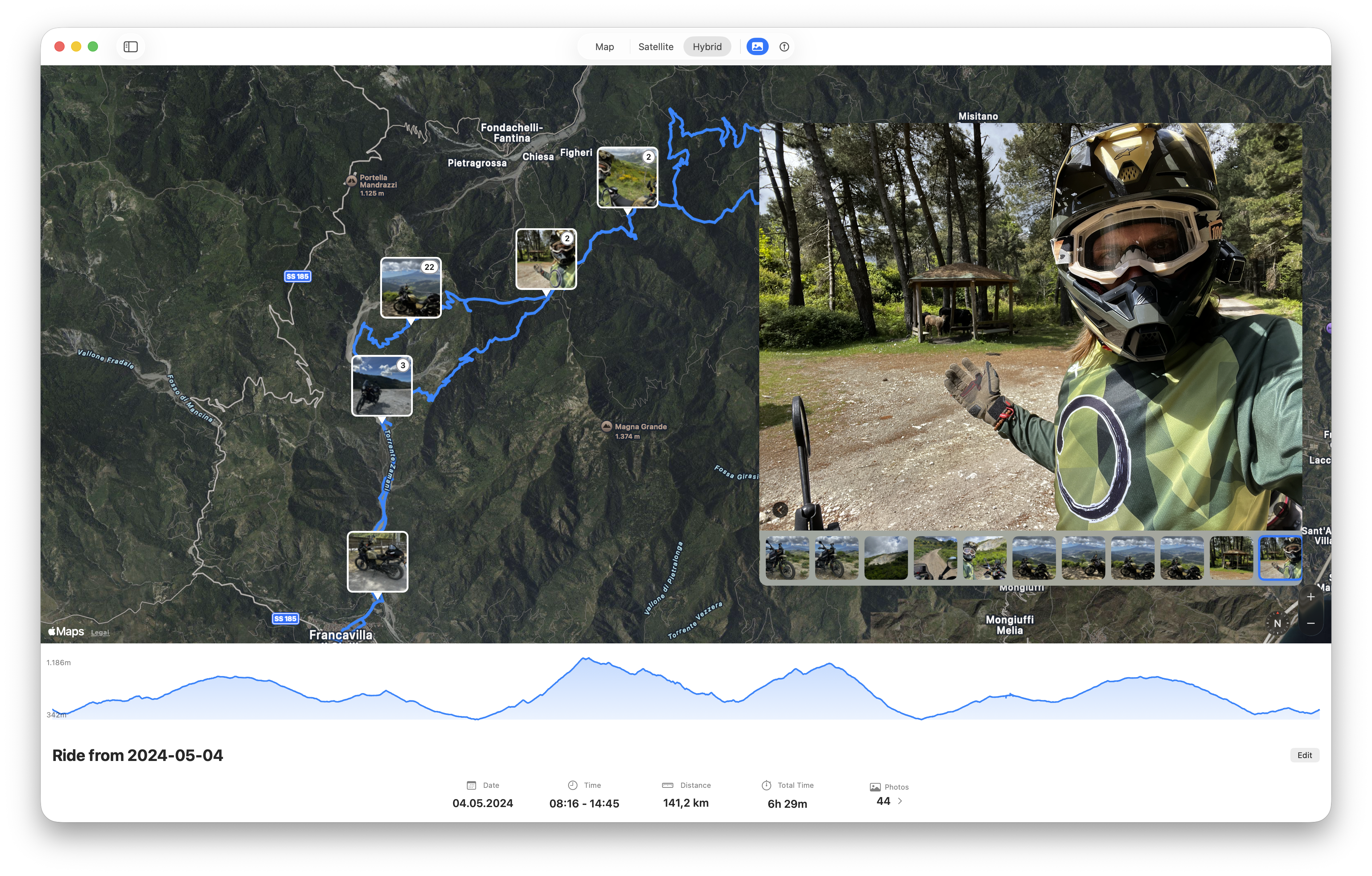
Click any photo pin to see the full image and its position on your route
That coffee stop where you met fellow riders? Photo’s right there. The mountain summit where you took a ten-minute break just to stare at the view? It’s pinned at the highest point of your elevation profile.
Off-Season Archive Browsing
Winter evenings become different. Instead of photos sitting disconnected in your Camera Roll, you browse last summer’s rides. Click through the Alpine pass trip, photo by photo along the route. Show your partner why you came home grinning.
Planning Future Rides
Planning next season? Look back at what worked. That route with the stunning photos - save it for a repeat visit. The ride with no photos? Maybe it wasn’t as memorable as the data suggested.
This is what ride memories should be: routes and photos together, telling the story of where you went and what you saw.
Privacy: Your Photos Stay Yours
With apps like REVER and RISER, your photos upload to their servers. You’re trusting a company with your personal images and location data. If you stop paying, access becomes complicated. If they change their privacy policy, your data might be used in ways you didn’t expect.
MotoFlow takes a different approach: your photos never leave your device.
Photo matching happens locally on your Mac. MotoFlow reads your Apple Photos library, finds matching photos, and displays them - but the photos stay in Apple Photos. No copies, no uploads, no external servers.
When you sync to iPhone via iCloud, the photos sync through your iCloud account - Apple’s infrastructure that you already trust with your photos anyway. MotoFlow stores references, not copies.
What this means practically:
- No external servers - MotoFlow doesn’t have servers to store your data
- No account required - Use your Apple ID, nothing new to create
- No subscription dependency - Buy once, own forever. Your data remains accessible regardless of payment status
- Full export anytime - Your GPX files are standard format, exportable whenever you want
Your rides, your photos, your storage. Nobody else involved.
From Scattered to Organized
The transformation is straightforward:
Before: Photos in Apple Photos (thousands, mixed together). GPX files in folders (forgotten). No connection between them. Finding ride photos means scrolling and guessing.
After: Open MotoFlow, browse by date, click a ride, see your photos pinned along the route. Context preserved. Memories accessible.
The data was always there - timestamps in your photos, coordinates in your GPX files. MotoFlow just connects them.
Common Questions
Does photo matching work with GoPro or action cams?
Yes. Any camera that records accurate timestamps works - GoPro, Insta360, DJI, or dedicated helmet cams. Import your action cam footage to Apple Photos, and MotoFlow will match those photos to your rides just like iPhone photos.
Can I organize photos from rides I took years ago?
Absolutely. Import a GPX file from any date, and if photos from that time exist in your Apple Photos library, they'll match automatically. Your entire archive works retroactively - no need to have had MotoFlow installed when you took the ride.
Do my photos get uploaded anywhere?
No. Photos stay in your Apple Photos library. MotoFlow reads them locally on your Mac and displays them in context - but the photos themselves never leave your device or get copied to external servers.
What if my camera's clock was slightly off?
For iPhone photos with embedded GPS coordinates, location data provides a fallback. For other cameras, timestamps within a few minutes will still match reasonably well. If your camera was significantly off, you can adjust photo timestamps in Apple Photos before matching.
Does MotoFlow work on iPhone?
MotoFlow syncs your rides and photo references to iPhone via iCloud, so you can browse your organized rides on the go. The initial setup and GPX import happens on Mac.
Your Rides Deserve Better
Your ride photos deserve better than endless scrolling. Every photo you took on a ride should be on that ride, positioned where you took it, part of the story.
MotoFlow makes this automatic. Import your GPX files from whatever app you use to record. Your Apple Photos library provides the photos. Timestamps do the matching. You see the result: rides with photos in context.
Free to try. No subscription. Buy once, own forever.
Your data stays in your iCloud, synced across your devices through Apple’s infrastructure - never on external servers.
Get MotoFlow Today!
Track the ride. Relive the journey.